

How to revise your article in WordPress
This guide explains the basic functions you need to revise your article in WordPress. Don’t hesitate to text your editor via the network or write to [email protected] if you have any technical questions or regarding the review!
Guide for Authors: What the Email Notifications Mean
- Article under Review
Your article is now being reviewed by an editor. You don’t need to take action at this stage. Please wait for the editor’s feedback. - Revision Requested
You’ll receive this email when the editor has finished their review. It contains a direct link to your article in WordPress, where you can see the editor’s comments and suggestions. The editor will also reach out via the Network.
👉 Your task: Revise the article according to the feedback and submit it to the editor in WordPress (explained below). Please also confirm in the Network that you’ve started working on the revisions. - Revision Submitted to the Editor
This email confirms that your revisions have been sent back to the editor. No action is required until you hear back again. If further changes are needed, you’ll get another Revision Requested email. If the editor approves your article, you’ll move on to the publishing step. - Article Approved by Editor – Submit Publishing Agreement
If no further revisions are required by your editor, you’ll get this email.
👉 Your task: Upload the signed publishing agreement to the Network (link provided in the email).
If this is your first article for European Relations, we additionally require you to provide proof of identity.
As shown in the example image, this can be done by taking a photo of your face next to your ID document.
Why is this necessary? This step is needed to prevent articles from being published under a false or someone else’s identity. All information on the ID card, except for your name and date of birth, will be redacted by us. The redacted ID will then be securely stored on the European Relations server (located in Germany) as a PDF, ensuring your sensitive data is not shared with third parties or transferred abroad.
You can send the photo for identity verification to [email protected].
After that, your article is scheduled for publication.
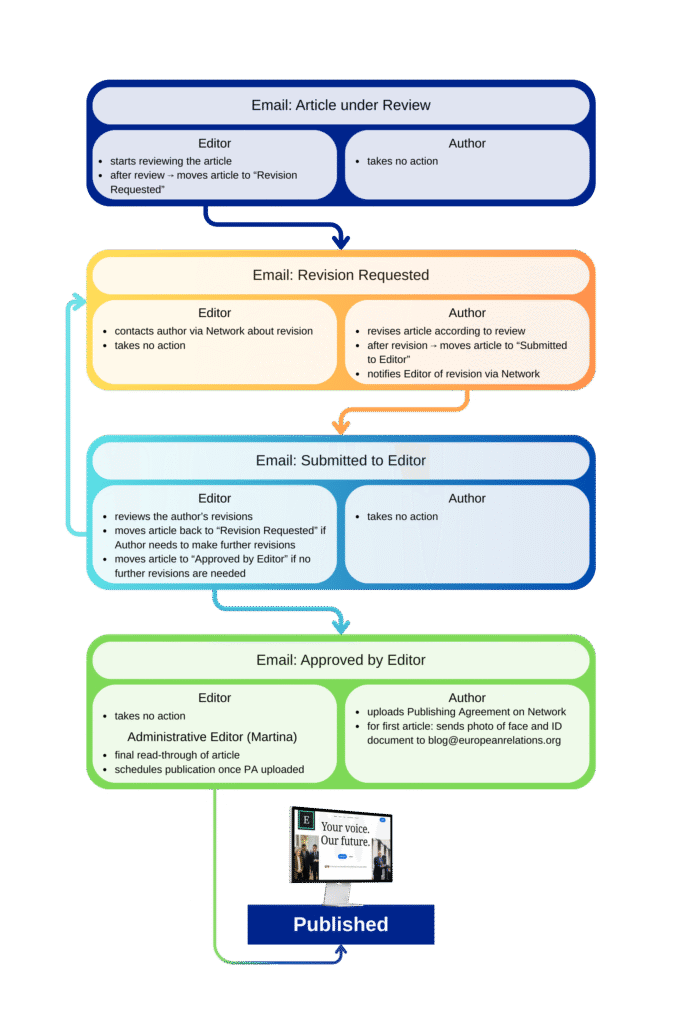
Please follow the instructions in the email notifications and the hands-on guide below:
1. Accessing Your Article
- Click the link in the email notification titled “Revision Requested for Your Article Submission to European Relations” to access your article in WordPress.
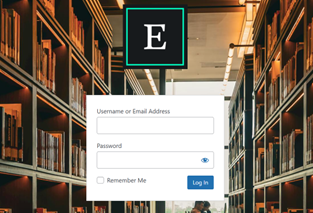
- Log in to WordPress using the same login details as for the European Relations Network.
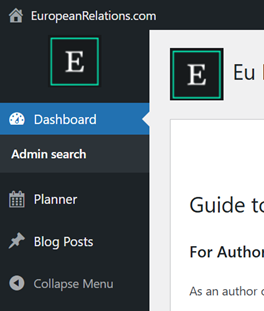
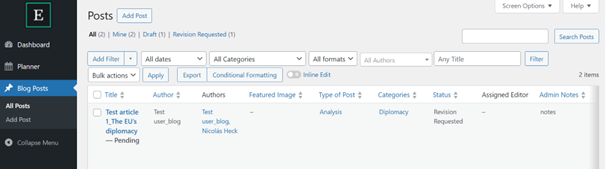
- Click on Posts → All Posts.
- Click on your article title to open it in the Editor.
2. Comments by the editor
- Read the comments from the editor carefully and revise the article accordingly.
- Resolve the editor’s comments when you agree with the suggested change and have adjusted the text accordingly.
- Reply to a comment if you do not understand its purpose.
- (Email notifications are sent to both the author and the editor for transparency reasons when comments on the article are resolved. We recommend archiving or deleting these notifications from your mailbox after the article has been published to save storage space.)
3. Revision Checklist
- The checklist gives you a condensed overview of the review guidelines. It is used by the editor during the review and after your revisions. Unfulfilled items are marked in red and then changed to green by the editor once they are fulfilled. Do not worry if you think that a checklist item is already fulfilled. Then the editor marks it green after your revision is submitted to them. You can also ask your editor, either through a comment or the Network, if you do not understand why a checklist item is still marked as red.
- The checklist does not replace the detailed review guidelines. Instead, it provides you with a clear, visual reference to track which requirements of your article are already met and where changes are still needed.
4. Editing Text
- Click directly into any paragraph to edit the text.
- Use the toolbar above each paragraph to apply formatting (e.g., bold, italics, links). Ensure that formatting is applied consistently and sparingly across the entire article.
- In the right sidebar, you can change the article’s subheading under “Excerpt”. However, please note the maximum length of 100 characters to ensure your article is displayed correctly on the website. Additionally, at the bottom of the sidebar, you can check or, if necessary, add the category, tags, and article format (analysis, opinion, news, explainer).
5. Headings and Structure
- To add or change a heading, select the text and choose Heading from the toolbar settings by clicking on the paragraph icon.
- Press “Enter” to create a new paragraph.
6. Saving Your Changes and Submitting to the Editor
- Click Save as Revision to save your changes to the article in the top-right corner.
- When you are finished with revising your article, you need to save the latest version (“Save as Revision”), click Workflow -> Advance to Max Status (Submitted to editor), so that the editor can review your changes.
- Exit the WordPress Editor after saving your changes by using the arrow in the top left corner and not by closing the tab or browser window, as this may result in data loss.
- Please leave the editor additionally a personal message on the European Relations Network that you have finished the revision of your article.
- If you see a notification saying “There is an autosave…”, you can restore it and save the article regularly.
6. How the editor conducts the review in WordPress
- Obvious errors and typos that do not affect the meaning (such as spelling or punctuation mistakes) will be corrected directly, without a comment.
- If a sentence needs rewording or structural improvement, the editor revises it in the text and leaves a comment (e.g., “suggested change” with a brief explanation, if necessary).
- Major or content-related edits will be suggested via comments only.
- It may be very helpful to read the Editorial Board’s Review Guidelines before submitting your article or while revising it, as they clarify the editorial standards used by the editors when reviewing article submissions.
© European Relations