

How to review an article in WordPress
Click the button to access the Review Guidelines.
Review Process:
- Email Notifications
- Troubleshooting for Failed Email Notifications
- How to Conduct the Review in WordPress & Examples
- Policy on Sources & Linking
Steps in WordPress:
- Accessing the Article
- Comments by the Editor
- Review Checklist
- Editing Text
- Headings and Structure
- Saving Your Changes and Submitting the Review to the Author
This quick guide explains the email notifications you receive during the editorial process, how you conduct a review in WordPress using comments and suggestions, and the basic functions of the WordPress Editor you need to review an article. Don’t hesitate to ask in the Editorial Board WhatsApp group if you have any technical questions or regarding the review!
Which automatic email notifications will you receive?
You and the author of your assigned article will receive the following email notifications. Even though the emails are addressed to the author, they are also intended as notifications for you as the assigned editor:
- Article under Review: This email is your starting signal to begin the review. The title of the article you’ve been assigned is included in the email. That means you log into WordPress and review the article. Once you’ve completed your review, move the article to the next status (“Revision requested”) so that the next email is triggered.
- Revision requested: This email instructs the author to revise the article according to your comments and suggestions, which is why it contains a direct link to the article in WordPress. However, make sure to also send the author a short message via the network to confirm that they are starting their revisions. If the author does not make the requested revisions within two weeks and does not respond to your messages in the network, please report to the Editorial Board WhatsApp group for a final attempt to get in touch through the editor-in-chief.
- Revision submitted to the editor: This email notifies you that the author has revised the article. You now review the author’s changes. If no further changes are necessary, move the article to the status “Approved for publication”. If further changes are needed, add comments and suggestions to the text, move the article back to “Revision requested”, and notify the author via the network.
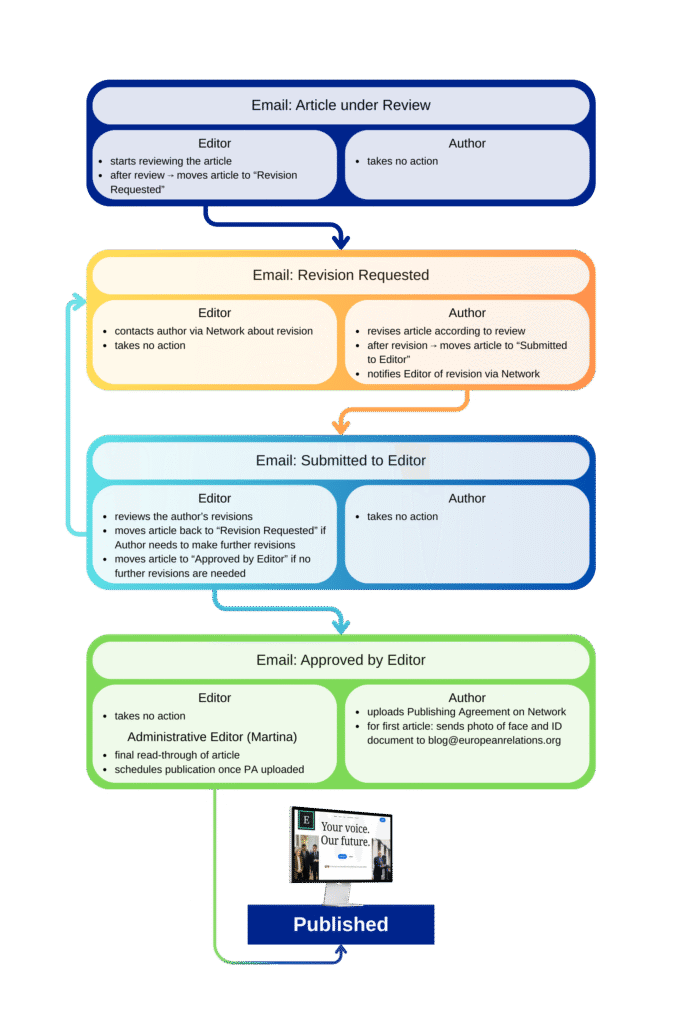
- Article Approved by Editor -> submit Publishing Agreement: This email informs the author to upload the publishing agreement in the network. It also signals the Administrative Editor (Martina) to give the article a final read-through. Once the publishing agreement has been uploaded, the Administrative Editor (Martina) schedules the article for publication.
⚠ Troubleshooting for Failed Email Notifications ⚠
When you move an article to a new status, you can routinely check whether you received the corresponding email notification. The author usually doesn’t receive an email notification if you, as the editor, didn’t receive one either. In that case, please go through the following steps:
- Save → Set the article status via the status dropdown menu to Draft → Save → Then set the status again to the one you originally intended (e.g., Revision Requested) → Save → Check whether you received the corresponding email (if you did, then the author did as well, and it worked).
If no email was triggered:
- Send the author the direct link to the article (copy the URL while you’re in the editor) and briefly message Nicolás to let him know that the email notification for the respective article and status was not sent.
How to conduct the review in WordPress:
- Obvious errors and typos that do not affect the meaning (such as spelling or punctuation mistakes) will be corrected directly, without a comment.
- If a sentence needs rewording or structural improvement, the editor revises it in the text and leaves a comment (e.g., “suggested change” with a brief explanation, if necessary).
- Major or content-related edits will be suggested via comments only.
Examples
1. Obvious errors and typos (correct directly, no comment)
- “The Europen Union is an important global actor.“
→ fix in the text without comment: European
- “This policiy was adopted in 2022.”
→ fix: policy
2. Rewording or structural improvement (revise + short comment):
- “Because the European Parliament had disagreements which were many about the Green Deal, the negotiations were lasting longer than what was expected.“
→ fix in the text: “Because of numerous disagreements within the European Parliament, negotiations on the Green Deal lasted longer than expected.“
and add comment: e.g., “Restructured for smoother flow”
3. Major or content-related edits (comment only, do not change text directly)
- “The EU banned all imports from China in 2019.“
→ Comment: e.g., “This statement seems factually incorrect.“ - “According to studies, 80% of Europeans support abolishing national parliaments.“
→ Comment: “Source through hyperlink, please”
Click the button to access the Review Guidelines.
Here is further information about our Policy on Sources & Linking. The video was created with AI to make the information a bit more engaging and digestible; however, the key information forming the basis for the AI video was written by the editor-in-chief and is available under the video:
Policy on Sources & Linking
1. When a Source Is Required…
Editors should verify that sources are provided for:
- Facts not widely known or self-evident (e.g. “The EU’s GDP grew by 0.2% in Q1 2024” → requires a source).
- Data, figures, or statistics (always link to the original dataset/report where possible).
- Quotations or paraphrased ideas from other authors, journalists, or scholars.
- Events, news, and developments (e.g. elections, court rulings, policy changes).
- Arguments or positions of others (e.g. “Critics argue that…” should link to a specific identifiable critic or publication).
- Specialist knowledge outside general public awareness (e.g. EU treaty articles, niche institutions, or policy instruments).
No source is required for:
- General common knowledge (e.g. “Paris is the capital of France” Or “The German GDP is higher than the French GDP”).
- The author’s own interpretation, reasoning, or opinion (though these must build on sourced facts).
–> General rule: Authors should provide a source wherever they most likely needed one themselves to find or verify the information while writing. However, it is also important to identify which pieces of information may not be essential to the argument. These can, in some cases, be omitted altogether or may not require a source.
This also means: Avoid over-sourcing (every sentence linked), which interrupts reading flow. Authors should link where it adds clarity, traceability, and verifiability.
Keep in mind that our readership is largely politically interested and may have a basic education in political, economic, international, legal, and related topics. However, since our articles cover a broad range of subjects and often delve into specific information in greater depth, most readers will therefore need a certain degree of context, framing, and linked sources in order to properly understand the article and trace the origins of important information. This should be taken into account when writing or editing.
2. Sources by Article Type:
News Article (250–750 words):
- Expectation: A compact text anchored in verifiable facts.
- Source practice: Every key claim (new development, number, statement by an actor) must be traceable through a linked source.
- Balance: A news article often relies on a few solid sources (press releases, official documents, reputable media).
- Editor’s eye: If a reader cannot verify the main facts from the provided links, sourcing is insufficient.
Analysis (1500–2500 words):
- Expectation: A deeper argument that interprets developments.
- Source practice: Analyses should normally build on a broad evidence base, including:
- Primary sources (e.g., official data, institutional reports, legal texts, speeches, data of what is analysed, …)
- Secondary sources (e.g., academic analysis or commentary, think tank reports, high-quality journalism, …)
- Balance: Every major point of the argument should be anchored in at least one source, but not every sentence requires a link.
- Editor’s eye: If the argument feels opinionated without evidence, ask for more references. If it is drowning in links without a clear contribution, advise the author to streamline.
Opinion Piece (750–1500 words):
- Expectation: A strong viewpoint backed by facts.
- Source practice: Sources are needed to establish factual grounding (e.g. statistics, opponent’s arguments, key events).
- Balance: Not every rhetorical flourish needs a link, but core claims must be verifiable.
- Editor’s eye: Ask: Can a critical reader verify the factual scaffolding behind the author’s opinion? If not, require more sourcing.
Explainer (500–1500 words):
- Expectation: A comprehensive, balanced introduction to a topic.
- Source practice: Explainers must draw from multiple perspectives (e.g., historical, institutional, legal, political, etc.). This should also reflect in the referencing.
- Balance: More sources are expected here than in a news piece or opinion, but they should be integrated smoothly to avoid overwhelming the reader.
- Editor’s eye: If the explainer feels like it’s based only on one article or Wikipedia, it’s insufficient. Encourage variety and balance across source types. The explainer format is intended to be similar to a high-quality encyclopedia entry.
3. Red Flags Across All Article Formats
- Key facts without references.
- Vague referencing (e.g. “Some experts say…” without attribution).
- Over-reliance on a single source to carry the argument. This does not apply if the author analyses one source in-depth.
- Chain referencing (e.g. citing a news article that cites another report, without linking to the original).
- Broken or misleading links (editor must test-click). Such links need to be corrected or changed by the author
- Plagiarism or patchwork sourcing (lifting text/ideas without attribution).
- Sources that do not actually support the claim.
- Academic citation styles (such as APA, Harvard, or MLA) are not permitted, but the Sources & Linking Policy follows the same underlying principle: every claim that is not the author’s own should be backed by a verifiable source through a hyperlink in the text.
4. Quality & Relevance of Sources
Editors should check that:
- Original sources are prioritised (e.g. EU legislation, official statistics, institutional press releases, …).
- Reputable secondary sources (academic articles, think tank reports, established newspapers or specialised media) are used for context or debate.
- Linking: Sources must be hyperlinked (1–4 words) directly.
- Balance: where debates exist, authors should show awareness of different perspectives, not only one-sided evidence.
5. Role of the Editor
- Encourage authors to diversify sources if needed.
- Check the sources and their content and quality.
- Suggest additional sourcing if key claims are unreferenced or under-evidenced.
- Flag cases where sources do not support the claims made.
Steps in WordPress:
1. Accessing the Article
- Click the link in the email notification titled “Revision Requested for Your Article Submission to European Relations” to access your article in WordPress.
- Log in to WordPress using the same login details as for the European Relations Network.
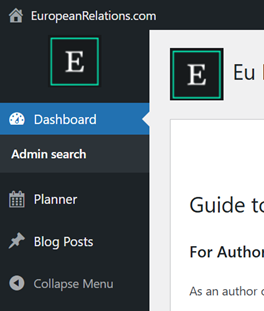
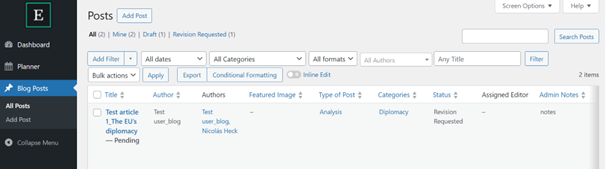
- Click on Posts → All Posts.
- Click on your article title to open it in the Editor.
2. Comments by the Editor
- When editing the text for the first time, the comment icon in the toolbar above the text may not be visible. In that case, click on the text and then on “Convert to Blocks” above the toolbar.
- You can add suggestions directly in the text and leave comments by highlighting the relevant text, clicking the comment icon, and writing your comment. You can edit or delete comments using the three dots in the comment box.
- Resolve comments when you agree with the author’s revision.
- (Email notifications are sent to both the author and the editor for transparency reasons when comments on the article are resolved. We recommend archiving or deleting these notifications from your mailbox after the article has been published to save storage space.)
3. Review Checklist
- The checklist shows a condensed version of the Review Guidelines. The reviewing editor checks the items during the review and after the author’s revisions, marking all fulfilled items green and leaving unfulfilled items red. The items are also visible to the authors, but they cannot mark them green as fulfilled.
- If authors do not meet the items in the checklist or in the review guidelines, the editor can still write a manual comment to explain the problem in more detail.
- The checklist items do not replace the use of the detailed review guidelines but serve as a clear reference point within the article.
- The article should not be moved to the status “Approved by Editor” if checklist items remain unfulfilled.
4. Editing Text
- Click directly into any paragraph to edit the text.
- Use the toolbar above each paragraph to apply formatting (e.g., bold, italics, links). Ensure that formatting is applied consistently and sparingly across the entire article.
- In the right sidebar, you can change the article’s subheading under “Excerpt”. However, please note the maximum length of 100 characters to ensure your article is displayed correctly on the website. Additionally, at the bottom of the sidebar, you can check or, if necessary, add the category, tags, and article format (analysis, opinion, news, explainer).
5. Headings and Structure
- To add or change a heading, select the text and choose Heading from the toolbar settings by clicking on the paragraph icon.
- Press “Enter” to create a new paragraph.
6. Saving Your Changes and Submitting the Review to the Author
- Click Save as In Review in the top-right corner to save your changes to the article.
- When you are finished reviewing the article, save the latest version (“Save as In Review”) and then click Workflow -> Advance to Next Status (Revision Requested), so that the author can revise the article.
- The same applies if you want to move the article from “Submitted to editor” to “Approved for Publication” because no further revisions by the author are needed.
- Exit the WordPress Editor after saving your changes by using the arrow in the top left corner and not by closing the tab or browser window, as this may result in data loss.
- On the article overview page, double-check that the article is in the correct status so the author receives the right email.
- To move the article from “Submitted to Editor” back to “Revision Requested” if the author still needs to make further changes, choose “Revision Requested” from the Status dropdown menu on the sidebar and then click the blue button (its label will change), as shown in the video.
- Please leave the author a personal message on the European Relations Network once you have completed reviewing their article.
- If you see a notification saying “There is an autosave…”, you can restore it and save the article regularly.
© European Relations